
How the Qvantums app works
Here you will find a brief summary of the Qvantums app and the basic functions for those of you who use the Qvantums app at home.
Download the app
If you have an iPhone, download the app from the App Store; if you are using an Android phone, it is available on Google Play.
The first time you start the app
When you start the Qvantums app for the first time, you need to create an account and sync with your heat pump.
Follow the instructions on the screen to get started: Fill in your details, click on “Connect your device” and scan the QR code to connect the app to the heat pump.
The home view and the menu
The home view is the starting point where you find the functions for your heat pump. This is where you set the heating or “Away mode” if you are traveling.
Below we describe the most basic functions in the home view.
Basic functions for home users
Overview
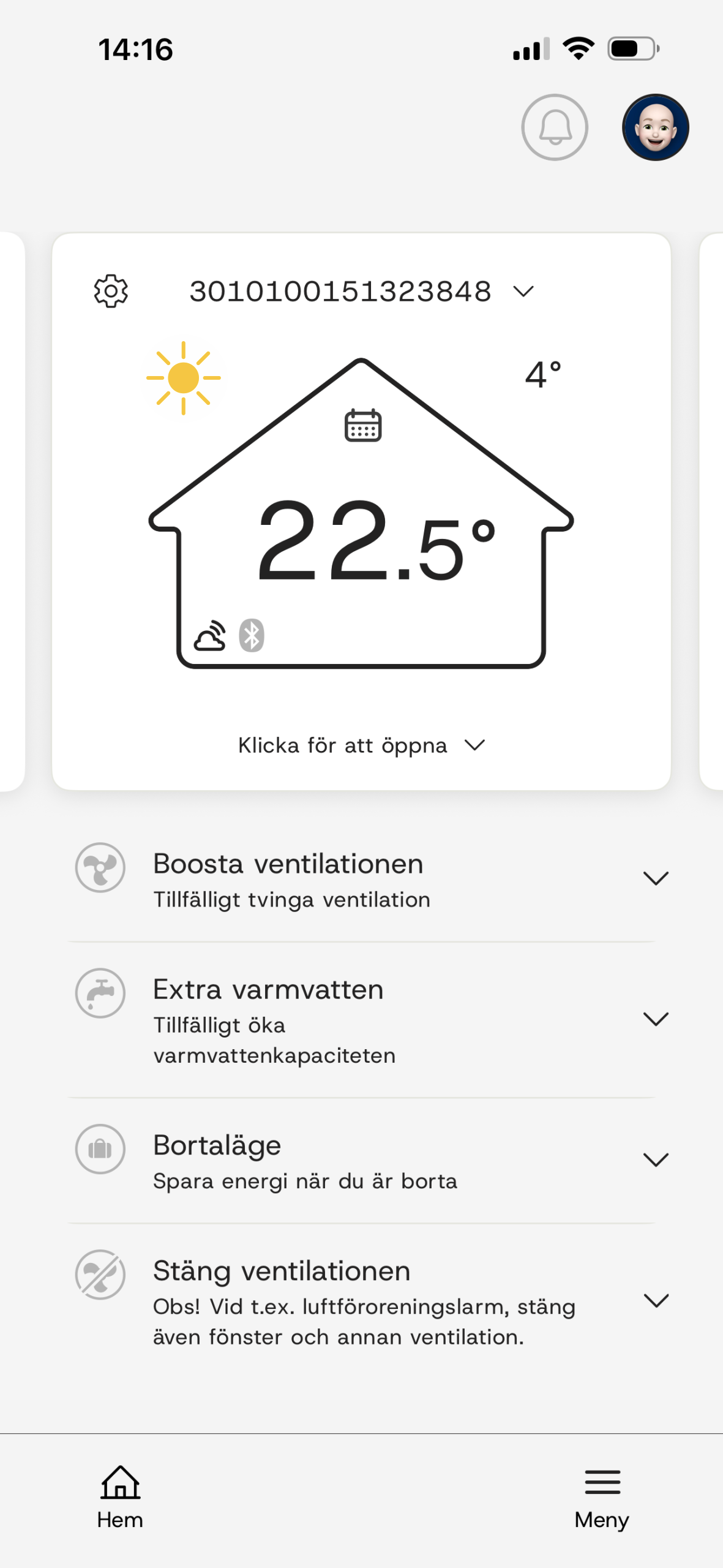
The house card is “your home” and shows your chosen temperature*.
The current weather is displayed above the roof on the left and the outside temperature on the right. The lower corner of the house shows the WiFi connection and Bluetooth connection.
If you have an active schedule, a small icon will appear at the top of the house.
* To display the correct indoor temperature, an indoor sensor is required, otherwise a temperature offset (+/-) is displayed
Adjust temperature
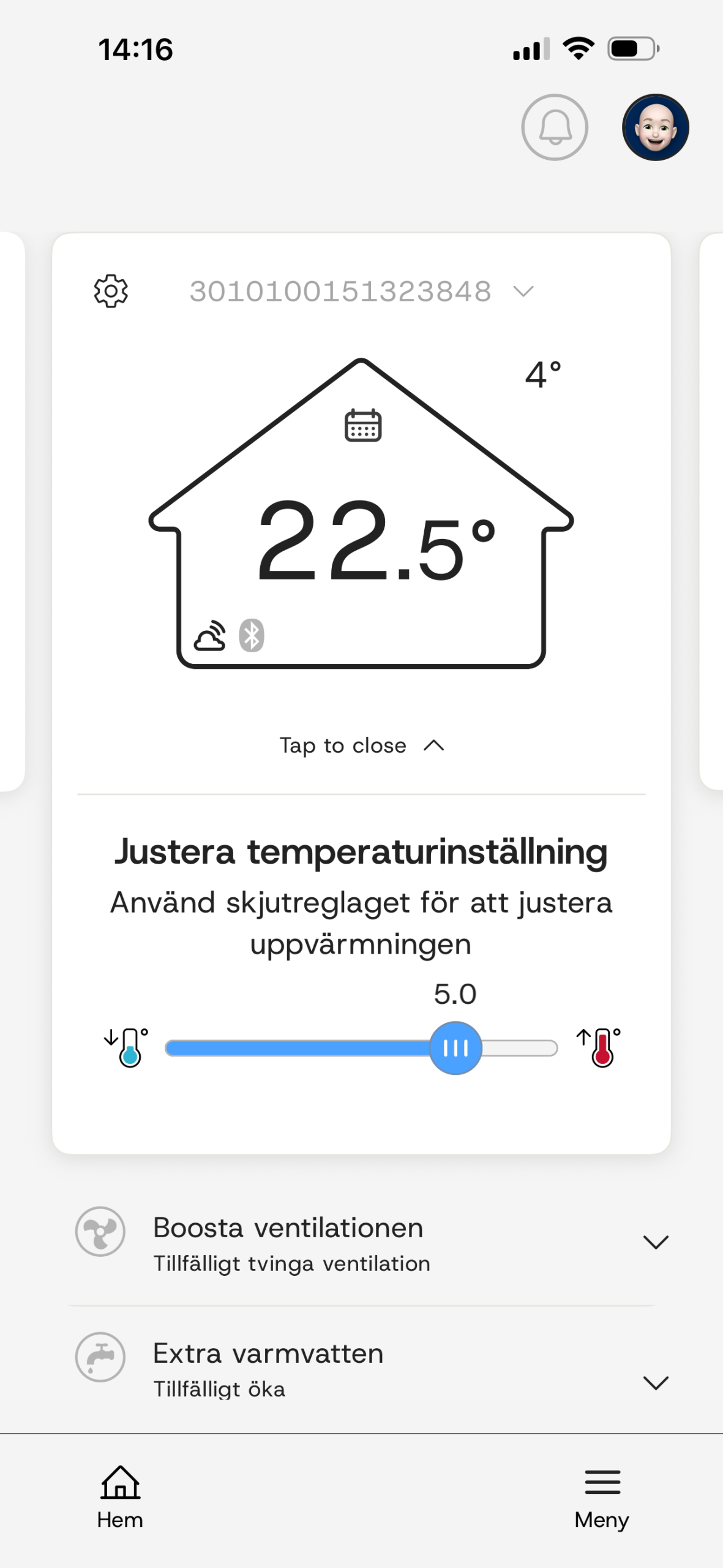
To adjust the temperature, click on the card to open it.
Drag the slider to adjust the temperature.
Shower capacity
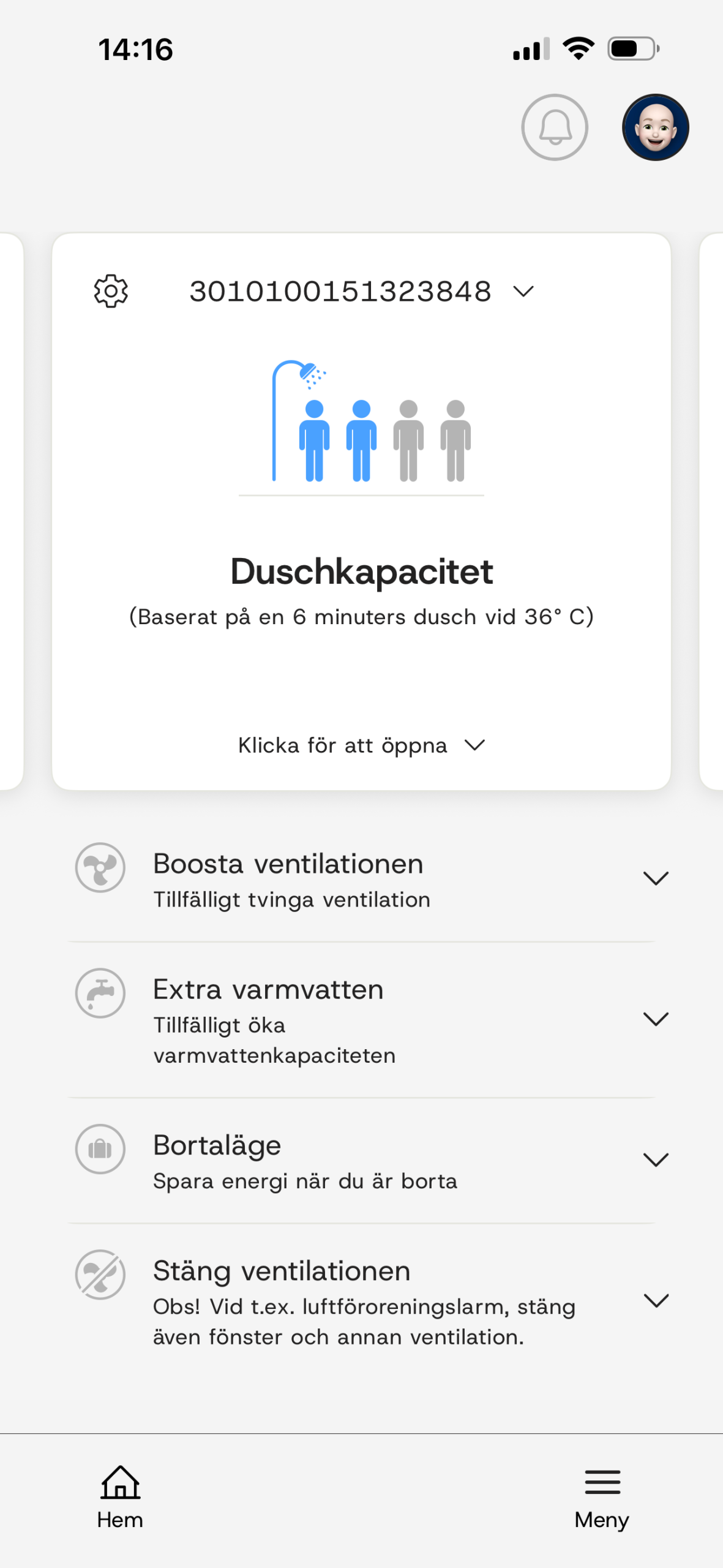
Swiping the home card to the left will take you to the shower capacity, which shows how much water your tank holds.
Adjust shower capacity
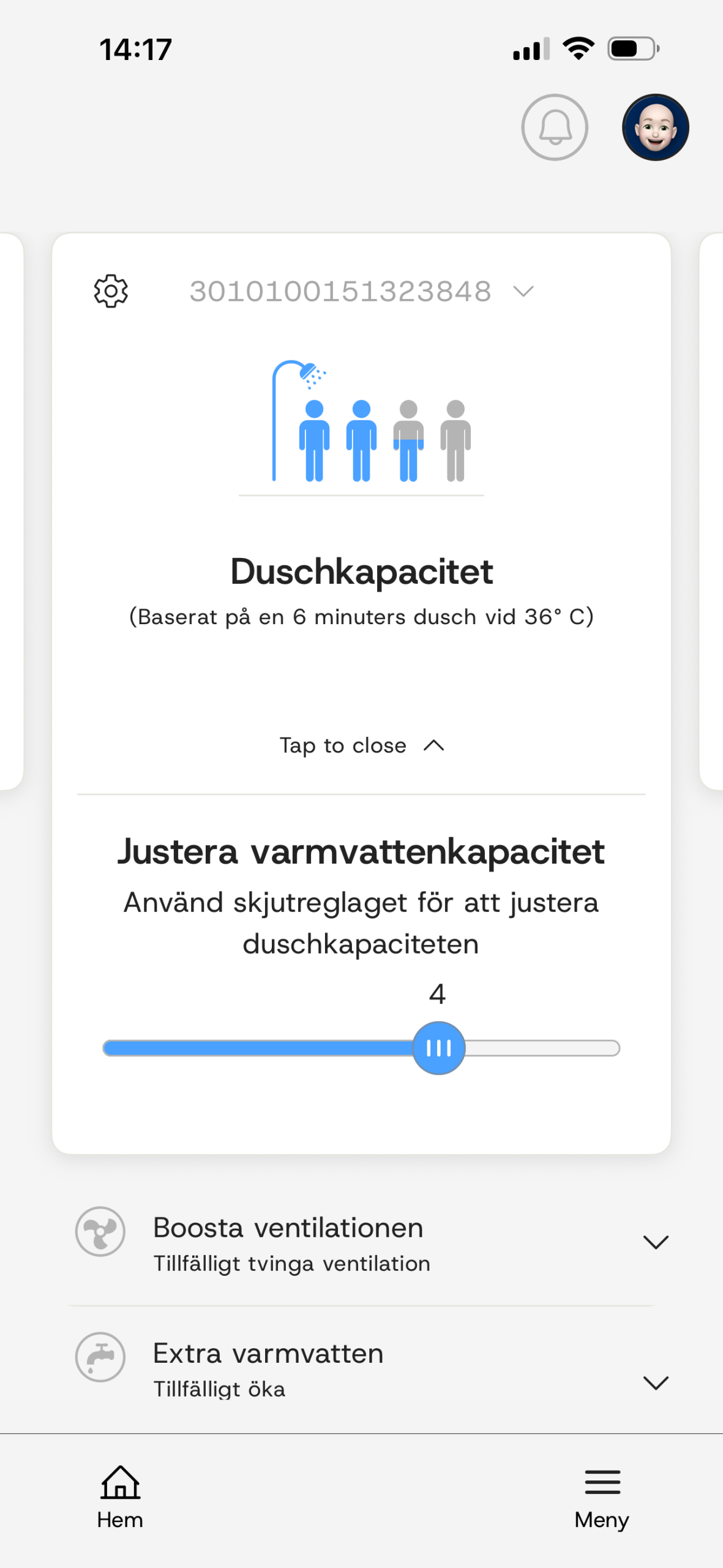
To adjust the shower capacity, click on the card to open it.
Drag the slider to increase/decrease the capacity.
The blue figures show the approximate amount of water remaining in the tank.
Boost ventilation
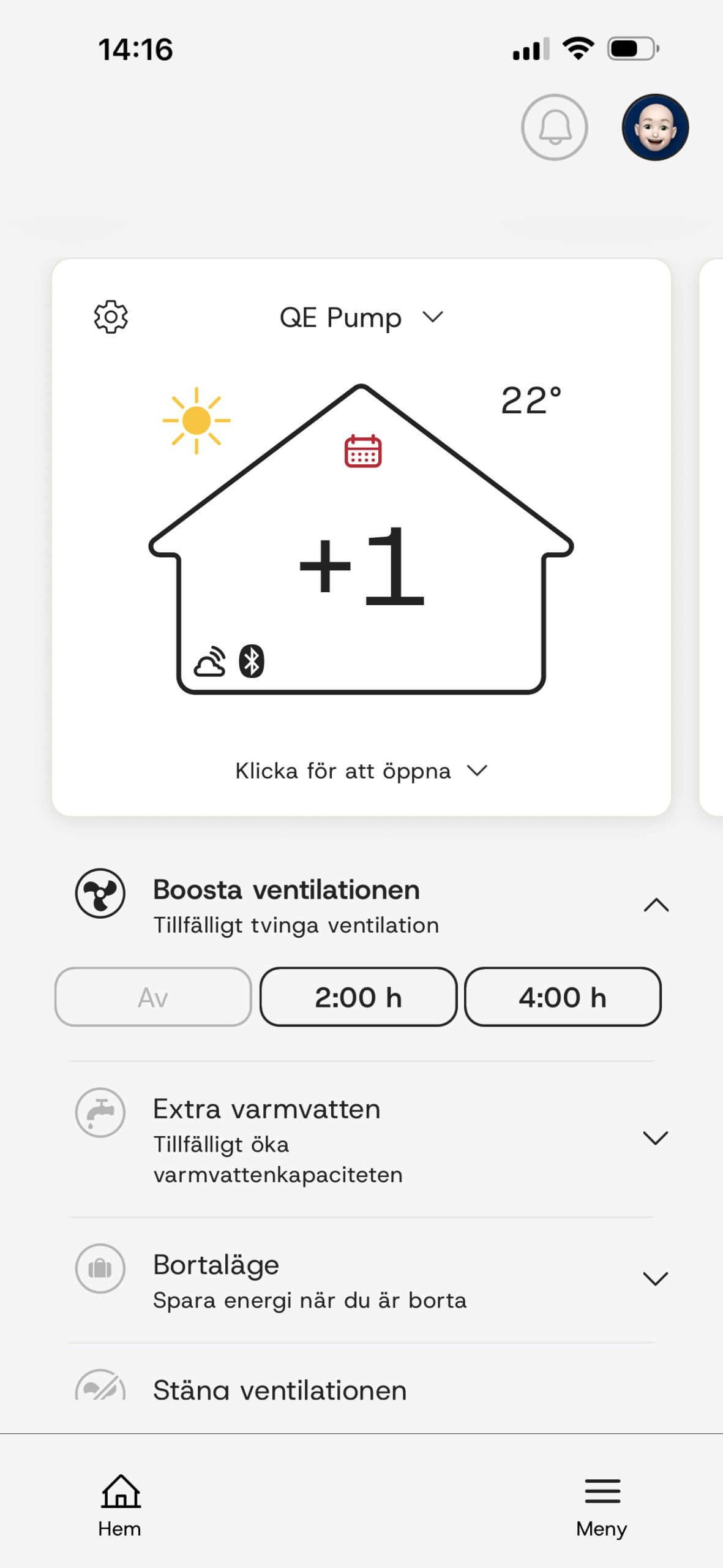
Extra ventilation temporarily increases ventilation – for example, if you have guests and there are more people than usual at home.
When the selected time has passed (two or four hours), the ventilation returns to normal mode.
Extra hot water
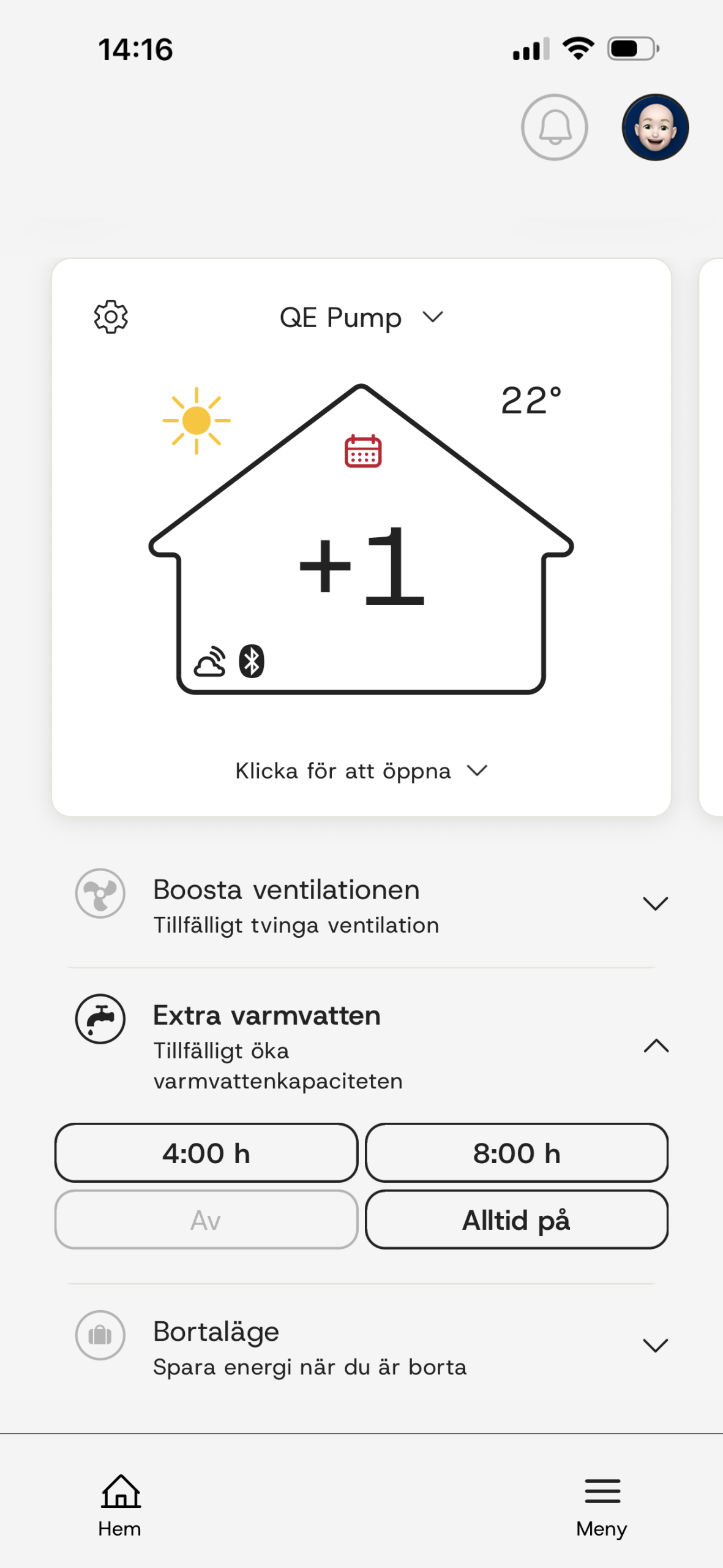
Extra hot water temporarily increases hot water production when you need a larger amount of hot water.
When the selected time has passed, the hot water production returns to normal mode
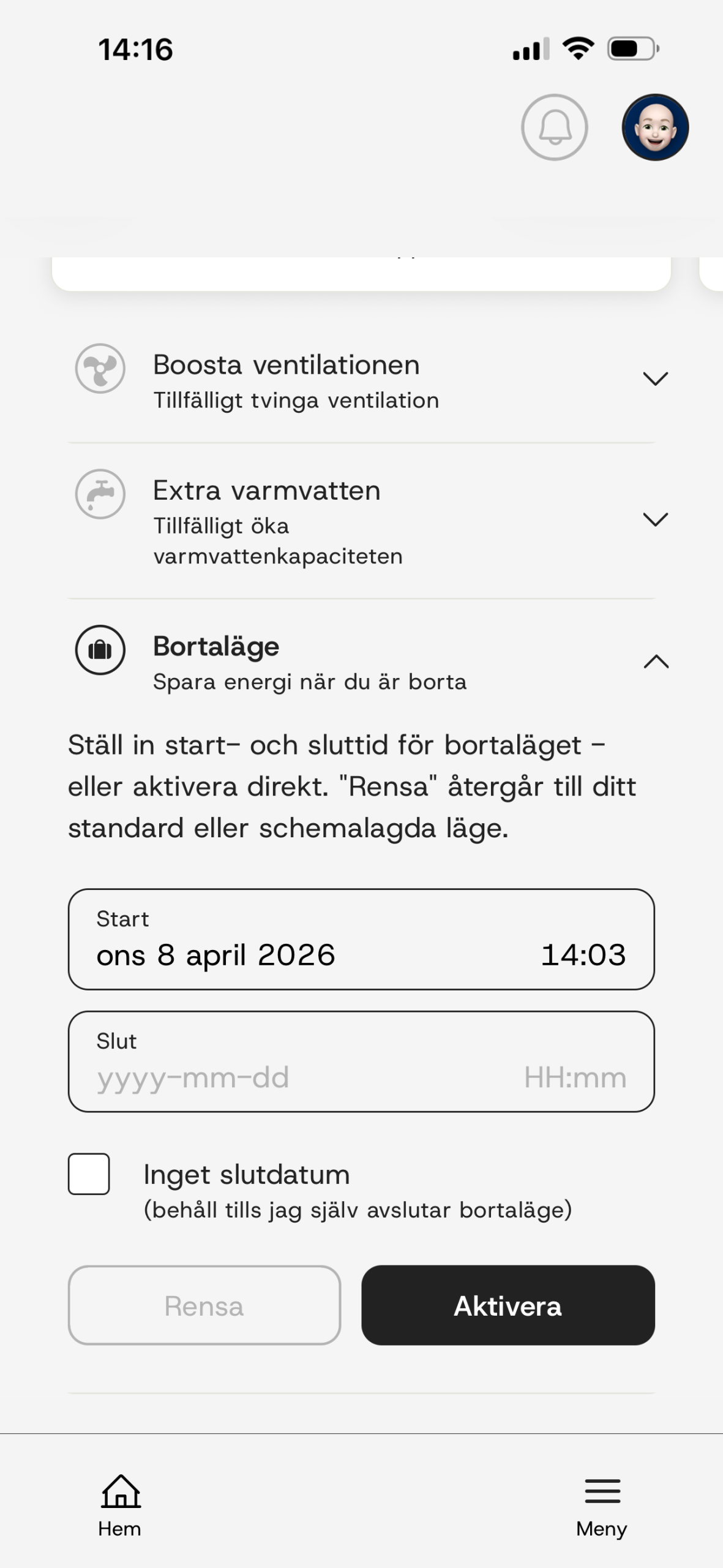
Away Mode
When away mode is active, the heat pump lowers the indoor temperature and hot water production to save energy.
Enter the start and end date or activate directly and leave it active until you choose to turn off the function.
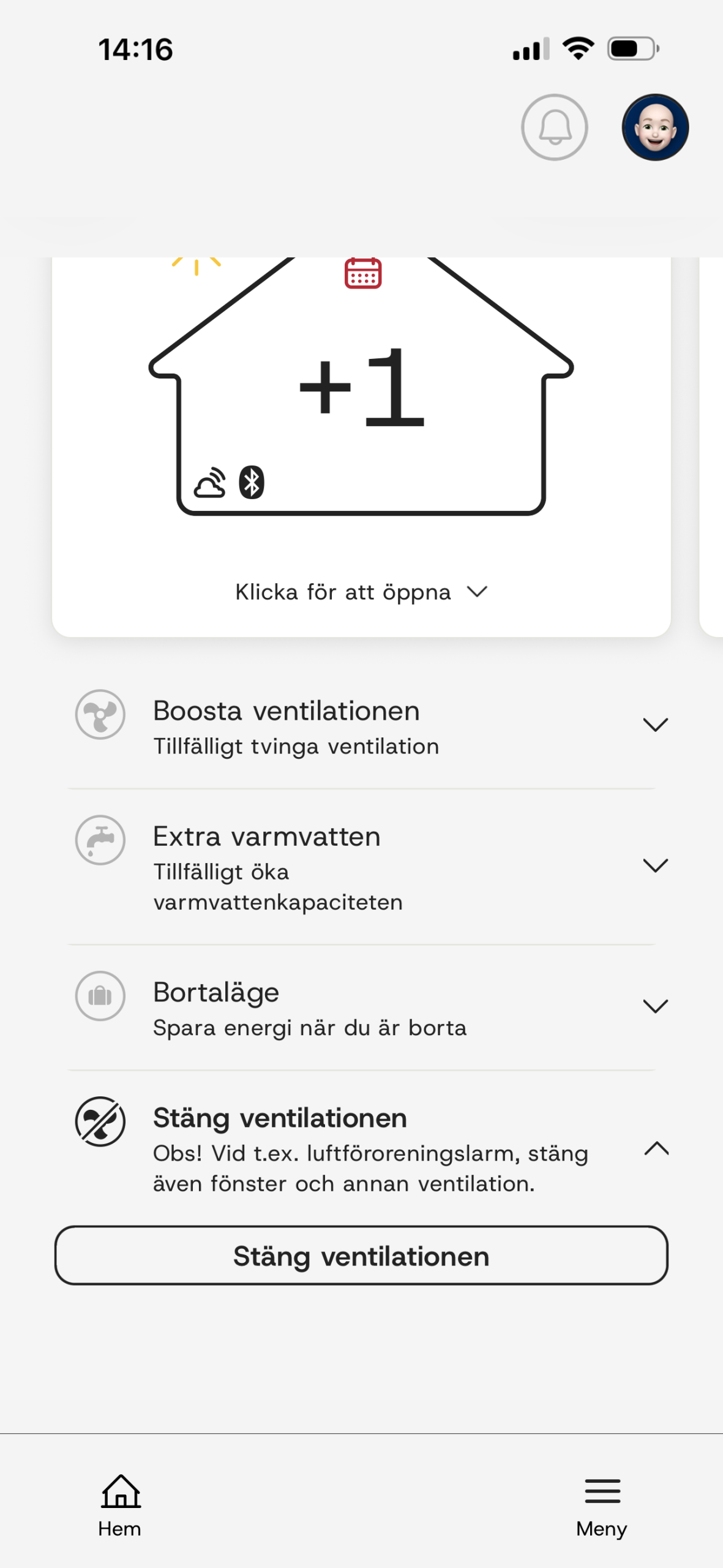
Close ventilation
This function turns off the fan and is used, for example, in the event of an air pollution alarm to stop ventilation. Also close doors, windows and other ventilation.

You can also use this function to turn off the fan when changing the filter.
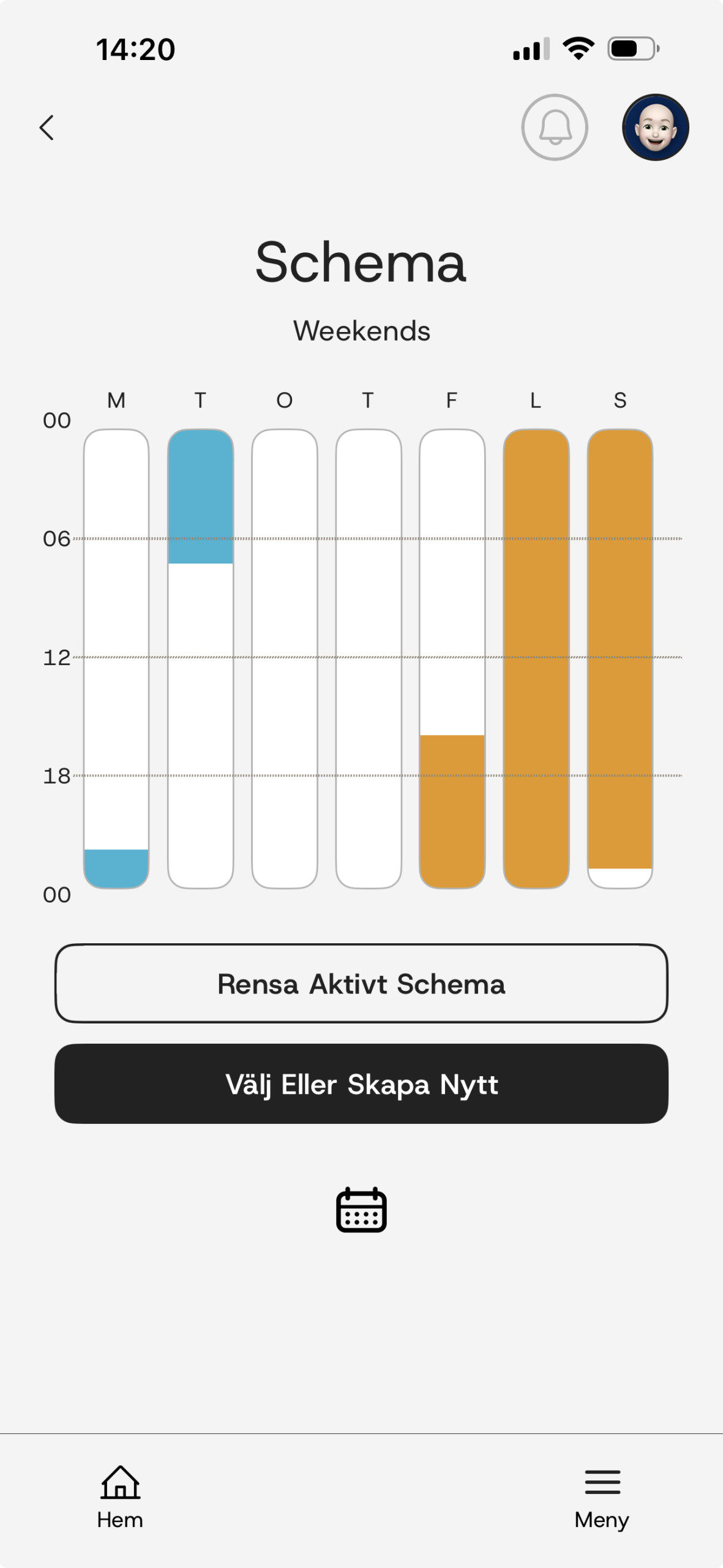
Schedule
With the schedule function, you can actively control and tailor comfort to your everyday life.
Adjust the temperature when the house is empty or increase the hot water capacity during the weekend.
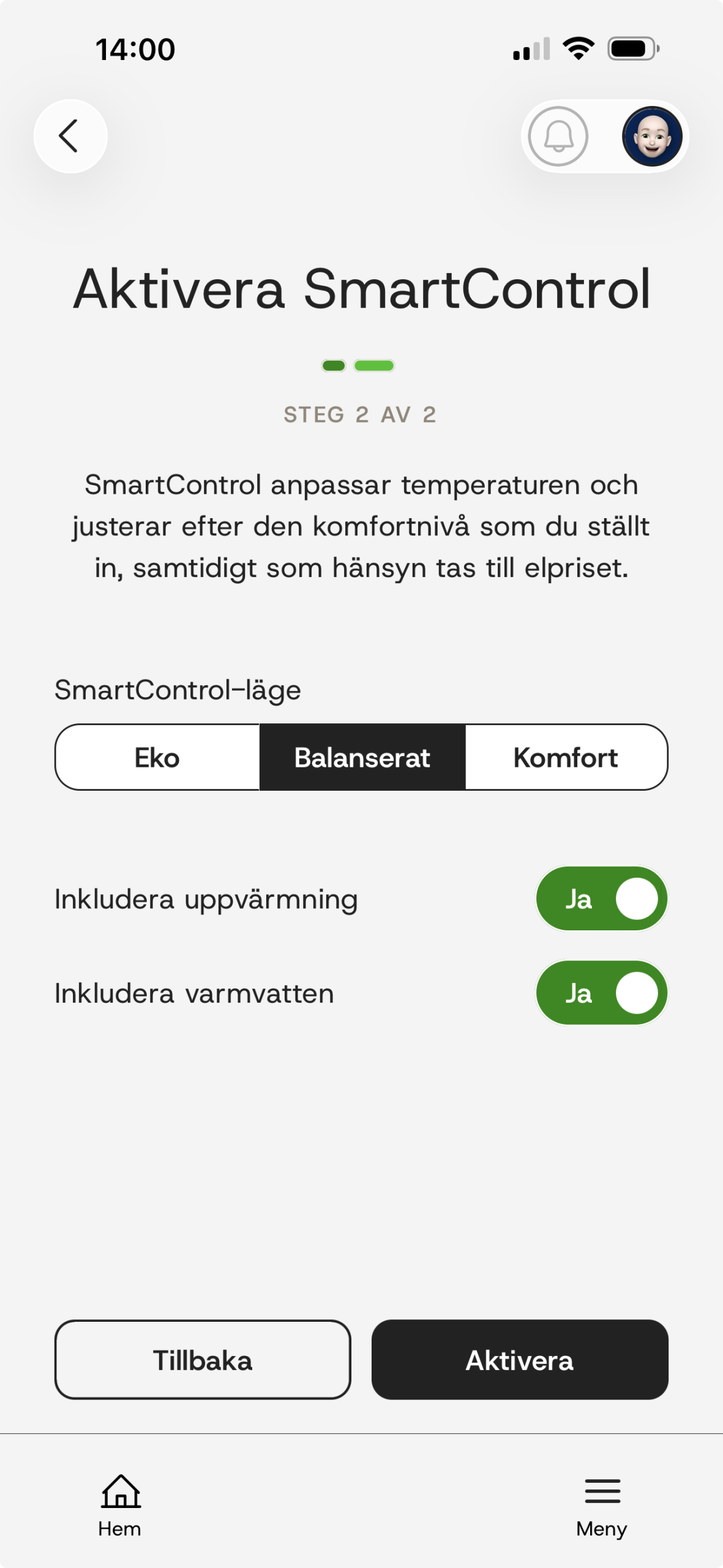
SmartControl
For those of you who have an electricity contract with an hourly price, there is the opportunity to save money when the electricity price is low.
The user can regulate between three different modes:
Eco – prioritizes high savings
Comfort – prioritizes high comfort
Balanced – lies in between
You activate SmartControl via the app’s overview view or via device settings.
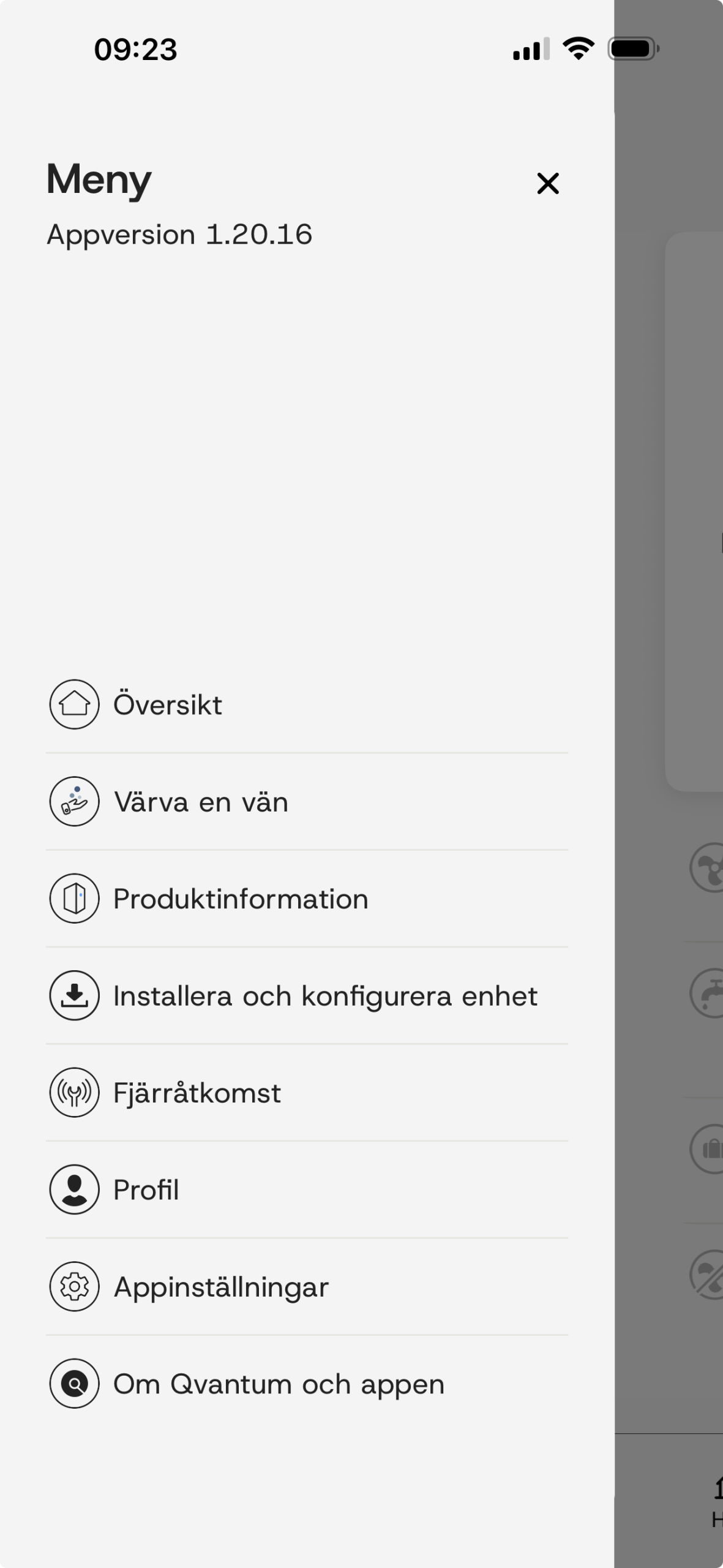
The Menu
In the menu, in the bottom right corner, you’ll find functions like product information, profile and language settings, etc.
In the menu you can also give remote access to the installer for service etc.
What do the symbols mean?
The symbols show what your heat pump is doing right now.





Please note that functions may vary or be missing depending on which heat pump you have.


